

How versions are recorded
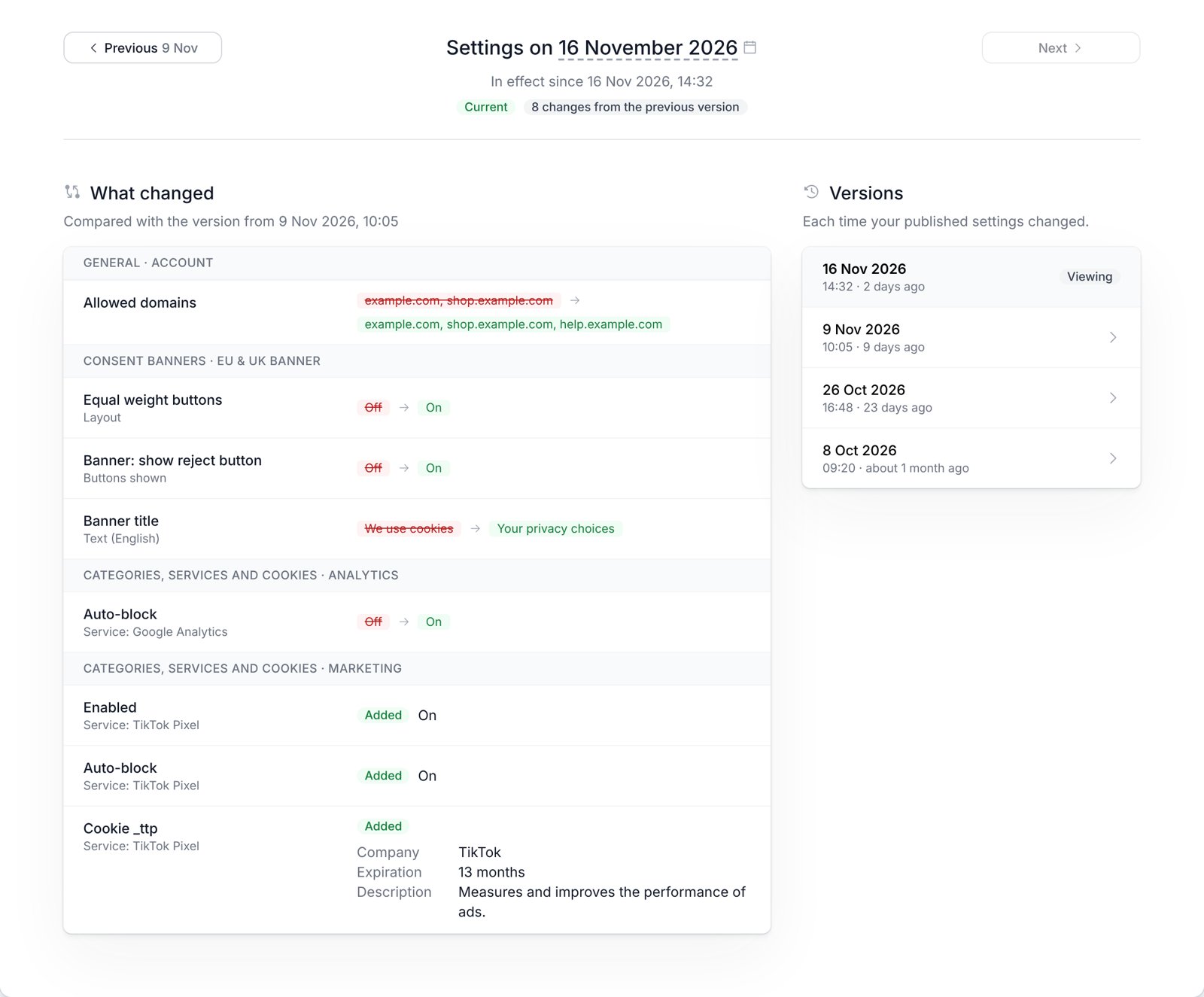
Each time you publish a change to your banners, categories, services or cookies, CookieChimp keeps a copy of the published configuration. A new version is listed only when something actually changed. Config Rewind starts from the first configuration recorded for your account. If you pick a date before that, it shows the earliest recorded version.Pick a date
Click the date in the heading to open the calendar, then choose a day. Config Rewind shows the configuration that was in effect at the end of that day. Use Previous and Next to step between versions. The Versions list on the right shows the versions around the one you’re viewing. Click any of them to open it. Times are shown in your time zone, which you can change in your profile settings.See what changed
What changed lists every setting that differs from the previous version:- Changed settings show the old value and the new value side by side.
- Added and Removed settings are labelled. A cookie added or removed as a whole is shown once, with its company, expiry and description.
What’s included
Good to know
- Config Rewind is read-only. To change a setting, update it in the usual place, such as the Banner Designer or Vendor Management.
- Every team member on the account can open Config Rewind.
- Config Rewind used to be called Settings History. Old links to
/settings-historyredirect to/config-rewind.