> ## Documentation Index
> Fetch the complete documentation index at: https://docs.cookiechimp.com/docs/llms.txt
> Use this file to discover all available pages before exploring further.
# Global Privacy Control
> Automatically honor the GPC browser signal so opt-out users skip the banner.
Global Privacy Control (GPC) is a browser signal that lets a visitor opt out of the sale or sharing of their personal data without interacting with a consent banner. Some privacy laws — most notably California's CCPA/CPRA — require sites to honor this signal.
When the GPC integration is enabled, CookieChimp detects the signal and records the visitor's opt-out preferences automatically. The banner is not shown.
Based on the setup you have done to not track or run scripts when consent is denied, that behaviour will be in place automatically for these visitors.
## How do I enable it?
Go to **Integrations** in your CookieChimp dashboard and find the Global Privacy Control card.
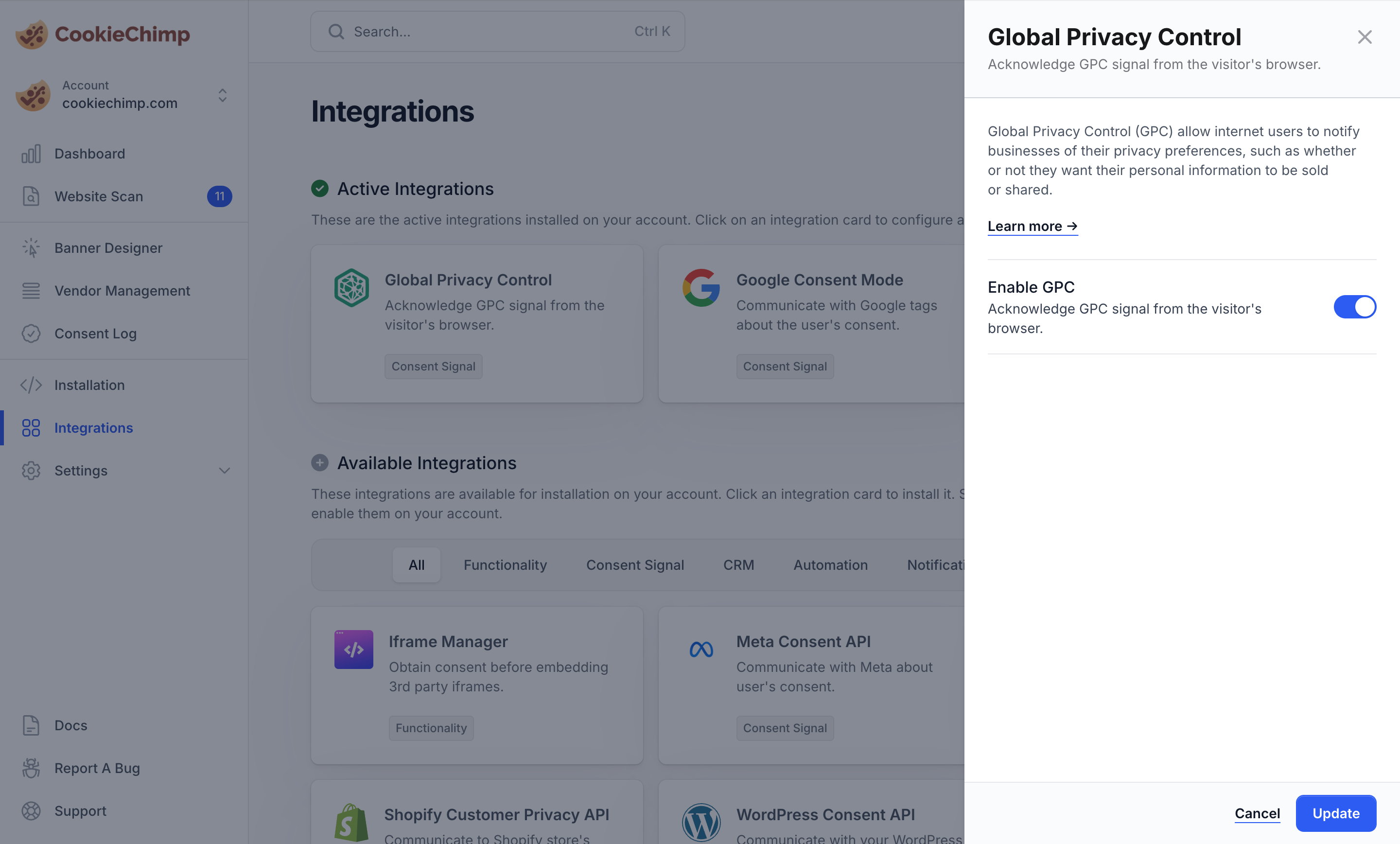 Turn the integration on. No further configuration is required.
## Which browsers send GPC?
* DuckDuckGo browser
* Brave (with the GPC setting enabled)
* Firefox (via extensions such as Privacy Badger)
* Chrome, Edge, and Safari (via GPC extensions)
## How do I verify it's working?
1. Enable **Debug mode** from **Settings → Consent Features** in your dashboard.
2. Visit your site from a browser that sends GPC (e.g. DuckDuckGo or Brave with GPC on).
3. The banner should not appear, and the browser console will log that opt-out preferences were applied automatically.
Turn the integration on. No further configuration is required.
## Which browsers send GPC?
* DuckDuckGo browser
* Brave (with the GPC setting enabled)
* Firefox (via extensions such as Privacy Badger)
* Chrome, Edge, and Safari (via GPC extensions)
## How do I verify it's working?
1. Enable **Debug mode** from **Settings → Consent Features** in your dashboard.
2. Visit your site from a browser that sends GPC (e.g. DuckDuckGo or Brave with GPC on).
3. The banner should not appear, and the browser console will log that opt-out preferences were applied automatically.